Radio settings
The Radio panel allows you to choose the correct radio frequency and power settings for the location of your deployment, ensuring the gateway stays compliant with local regulations.
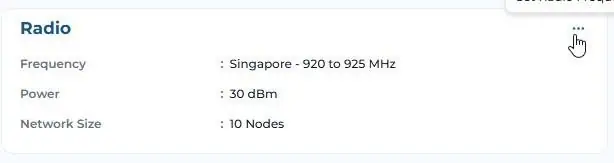
1. Click on the three dots in the “Radio” panel of your gateway. Then, select your country from the drop-down menu. The highest power available for your selected country will be assigned to the “Power” field, but you can adjust this to a different value if necessary. If the nodes are close by to each other <50 meters gap, it is best to stick to default Transmission Power whereas if the distance between nodes are >50 meters, you can adjust the Transmission power to be higher to ensure better network connection. Kindly take note that altering the TX power beyond default value would consume battery on nodes at a slightly higher rate.
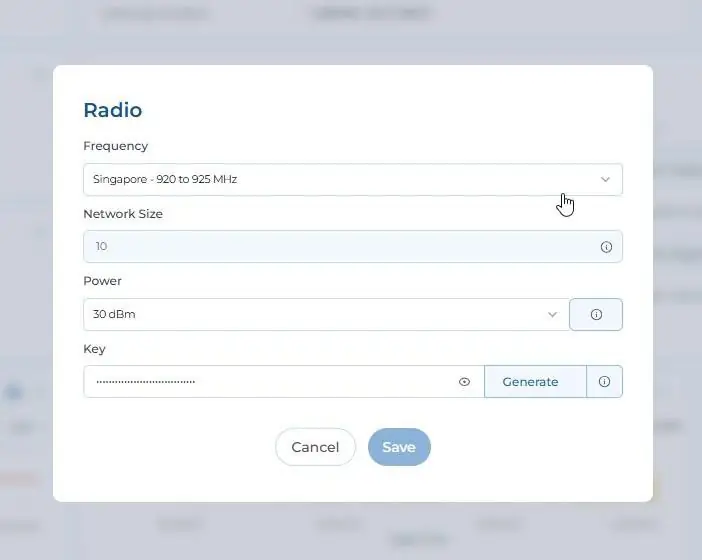
2. KEY: Your Gateway uses AES128 for end-to-end data encryption. You can click on the “Generate” button to regenerate a new key for encrypting radio communication. Finally, click on the “Save” button to apply the new settings to the gateway.
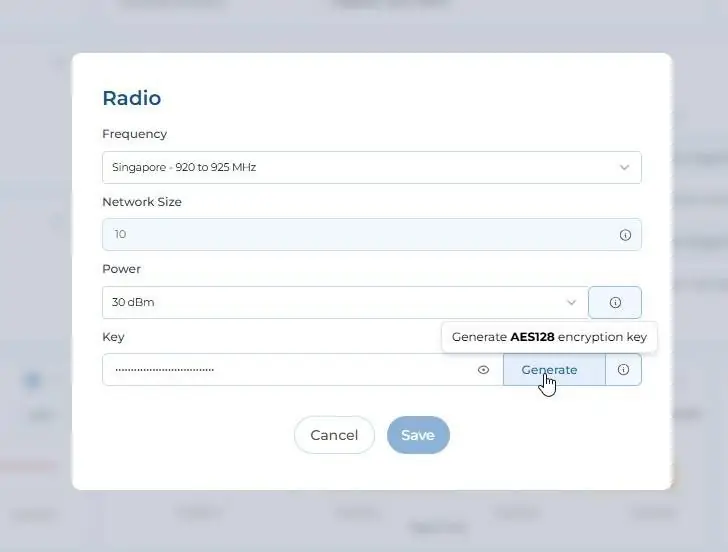
CautionThese radio settings are needed by the nodes to communicate with the gateway. If these settings are changed after commissioning your nodes, all of your nodes will lose connection and you will need to re-commission each node for the new settings to be applied or revert to the original settings.