Update gateway software and firmware (Snape 1.0)
Updating Software and Firmware
The “Version” panel on the Settings page is used to show the user which software and firmware versions are running on their gateway. It also indicates the hardware version of the gateway at hand. In the panel, “Mesh” refers to the firmware version running on your gateway, while “Snape” is the name of Ackcio’s gateway software. Both can be updated through the “Version” panel. Our development team is constantly improving our software and adding new features to help you get the most out of your equipment. From time to time, Snape and Mesh updates may become available. To update, please follow these steps.
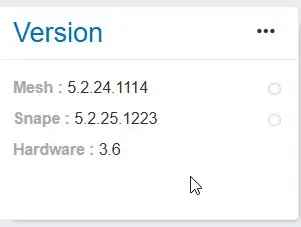
Update Snape (Online Mode)
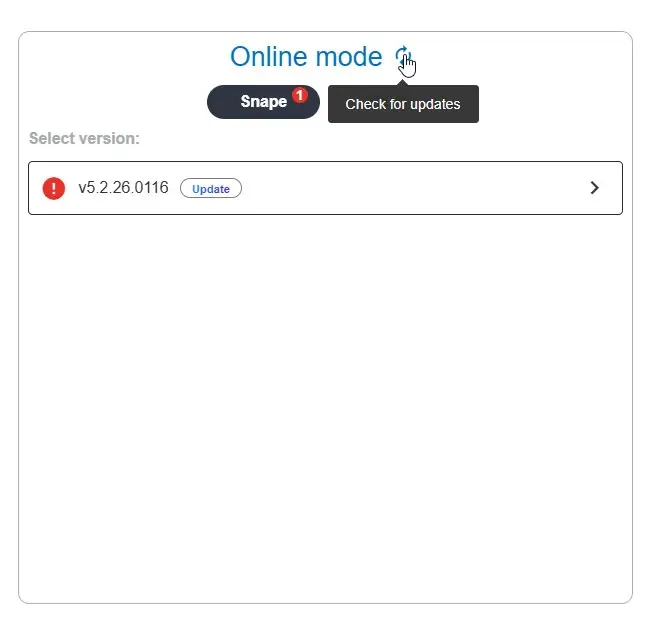
1. Click on the three dots in the “Version” panel of your gateway. Then, make sure you look for ONLINE MODE Box. Next, click the refresh icon to check for available updates. If any are available, you will have it numbered on “Snape” as picture attached indicating it has some updates
2. When you are ready, click “Download and Install”.
A progress bar will appear indicating the update process has started. The update process' length will vary depending on the size of the update. Once the update is complete, you will receive a popup notification that the update has been completed. The gateway might automatically restart depending on the update and you will be required to login again. Verify if your update was successful by checking the new version number in the “Version” panel of your gateway. The Snape version should now correspond to the version of the update file.
Update Snape (Offline Mode)
1. If your gateway is not connected to the internet, it can still be updated in Offline Mode. Click on the three dots in the “Version” panel of your gateway. Browse and select the .zip file of the package file obtained from Ackcio and click the “Install” button. The name of the file would be similar to “snapeserver-v5.2.21.0519.zip”.
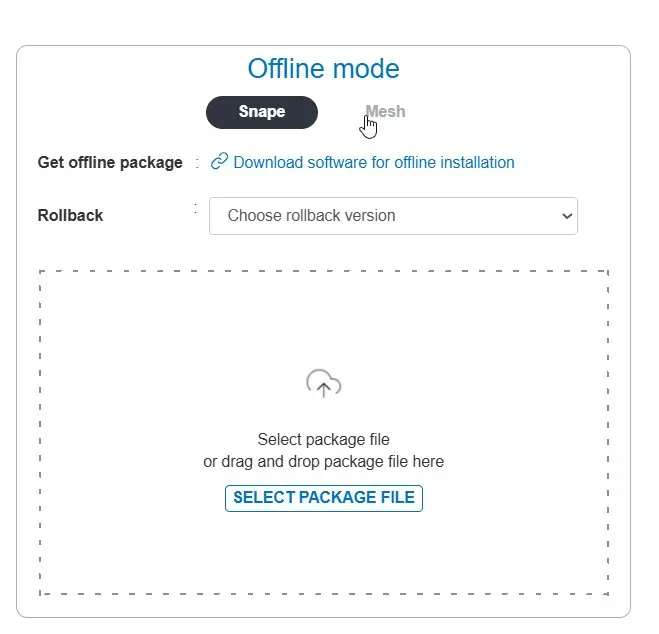
2. A progress bar will appear indicating the update process has started. The update process' length will vary depending on the size of the update. Once the update is complete, you will receive a popup notification that the update has been completed. The gateway might automatically restart depending on the update and you will be required to login again. Verify if your update was successful by checking the new version number in the “Version” panel of your gateway. The Snape version should now correspond to the version of the update file.
Update Mesh (Online Mode)
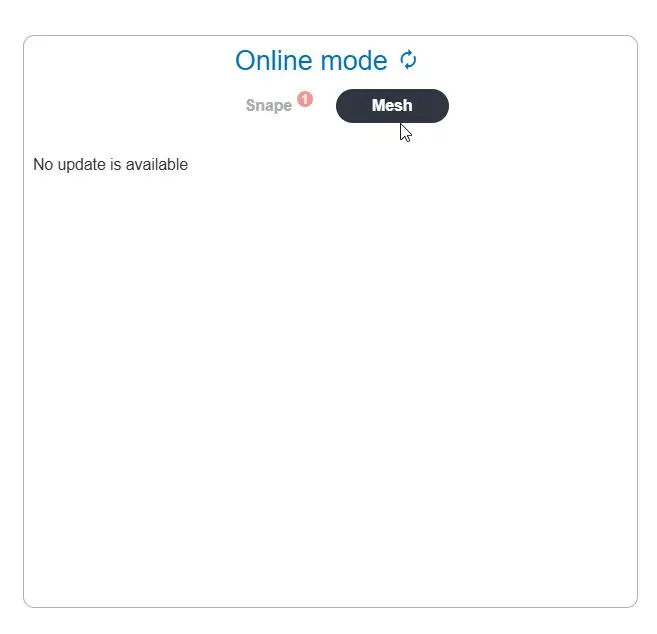
1. Click on the three dots in the “Version” panel of your gateway. Then, make sure you look for ONLINE MODE Box, and Mesh is selected. Next, click the refresh icon to check for available updates. If any are available, number will appear next to the “MESH”.
2. A progress bar will appear indicating the update process has started. The update process' length will vary depending on the size of the update. Once the update is complete, you will receive a popup notification that the update has been completed. The gateway might automatically restart depending on the update and you will be required to login again. Verify if your update was successful by checking the new version number in the “Version” panel of your gateway. The Mesh version should now correspond to the version of the update file.
Update Mesh (Offline Mode)
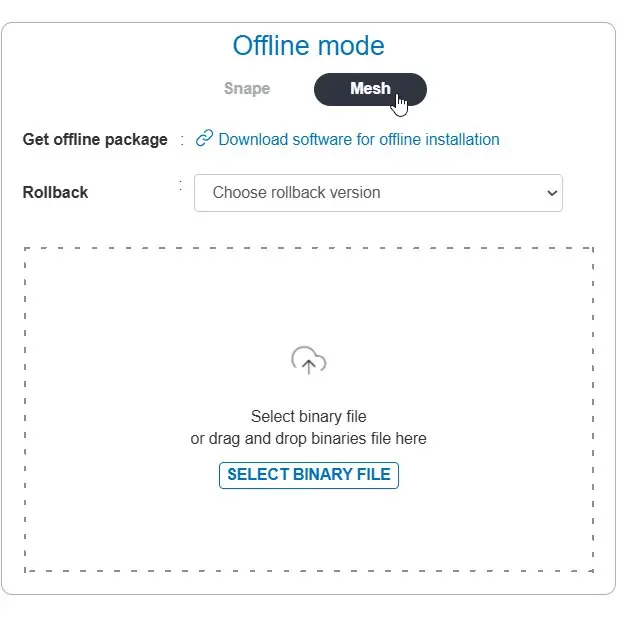
1. If your gateway is not connected to the internet, it can still be updated in Offline Mode. Click on the three dots in the “Version” panel of your gateway. Ensure you look for OFFLINE MODE BOX and that Mesh is selected. Browse and select the .zip file of the package file obtained from Ackcio and click the “Install” button. The name of the file would be similar to “BEAM_GW_H3.1_V5.2.22.0919.bin”.
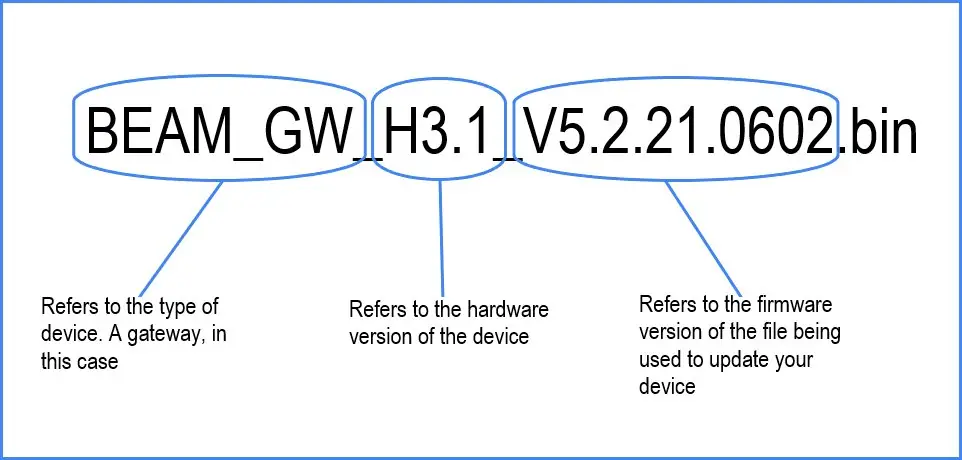
For more information on our file naming convention for mesh updates, please refer to Firmware file naming convention below.
2. A progress bar will appear indicating the update process has started. The update process' length will vary depending on the size of the update. Once the update is complete, you will receive a popup notification that the update has been completed. The gateway might automatically restart depending on the update and you will be required to login again. Verify if your update was successful by checking the new version number in the “Version” panel of your gateway. The Mesh version should now correspond to the version of the update file.
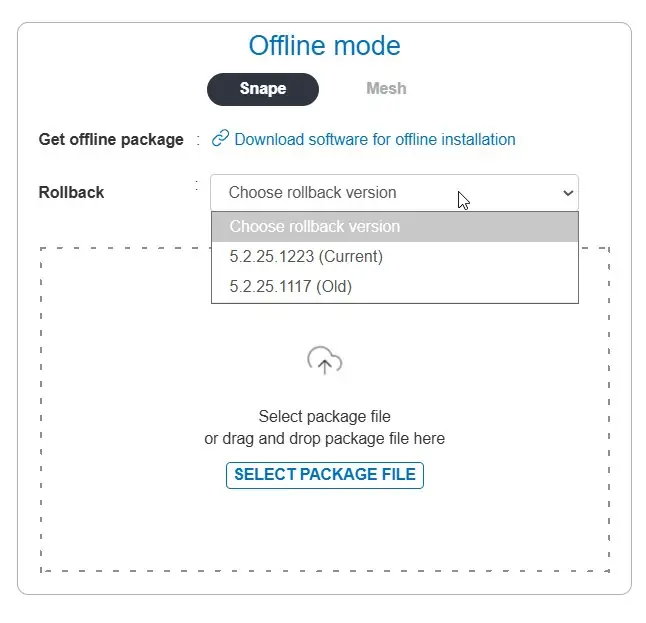
We have also provided rollback feature on both Mesh and Snape whereby GW would store any available updates on its rollback dropdown for client to click and run the updates instead of requesting it from ACKCIO Team. GW is designed to download the updates automatically from Ackcio Server whenever Gateway is provided with Internet.
Firmware file naming convention
NoticePlease note that our firmware maintains backwards compatibility for all versions beginning with the same first four digits. For example, V5.2.21.0602 will be compatible with V5.2.21.0710, but not with V4.2.20.0422 or V5.1.20.0912. This is important to note, because if you update the firmware of your gateway to a version that is incompatible with the firmware running on your nodes, they will be unable to communicate and will need to be re-commissioned.