Export and import project configuration (Snape 1.0)
Exporting and importing of project configuration from the Gateway
The Snape server software running on your Gateway will store the configuration settings of all commissioned Ackcio Nodes and sensors. After you've completed your project set up, we recommend that you export your project information for safekeeping. It is best to store the gateway logs to ensure data is secure in case GW get lost or stolen.
This config file can then be used to restore your project onto a new Gateway should the original Gateway face any issues. This allows you to restore the project in a matter of seconds, without the need to re-commission every Node in the entire network.
Exporting your project configuration
1. Connect to your Gateway's Wi-Fi network or remote.it link.
2. Open any web browser on your PC, visit http://192.168.0.10/ and login if its GW Wifi Hotspot
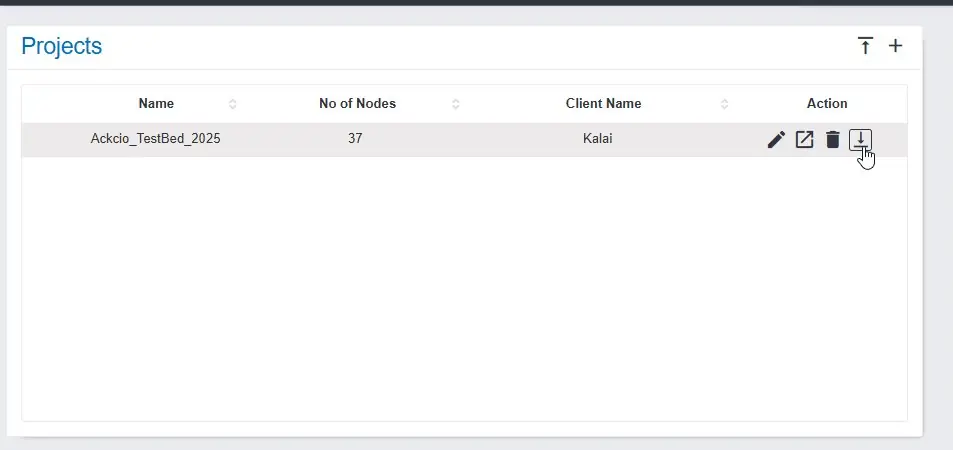
3. Click the Download icon on the Projects panel.
4. A .zip file will be downloaded onto your computer, containing your project information.
Importing your project configuration
1. Connect to the Wi-Fi network of the Gateway you'd like to import your project to.
2. Open any web browser on your PC, visit http://192.168.0.10/ and log in if it’s GW Wifi Hotspot
3. Click on the Import icon and select the .zip file of the project that you are trying to restore.
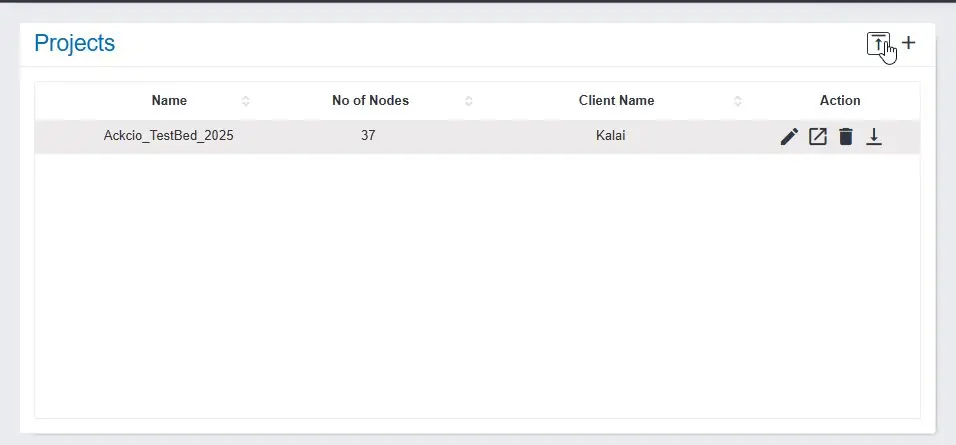
4. The project will be set up on your Gateway, and the Nodes in your project will start sending data to the new Gateway.