Date and NTP settings (Snape 1.0)
Configuring Date and NTP Settings
The “Date” panel allows you to configure your gateway to the correct time zone for your project, your preferred date format, and to configure NTP servers.
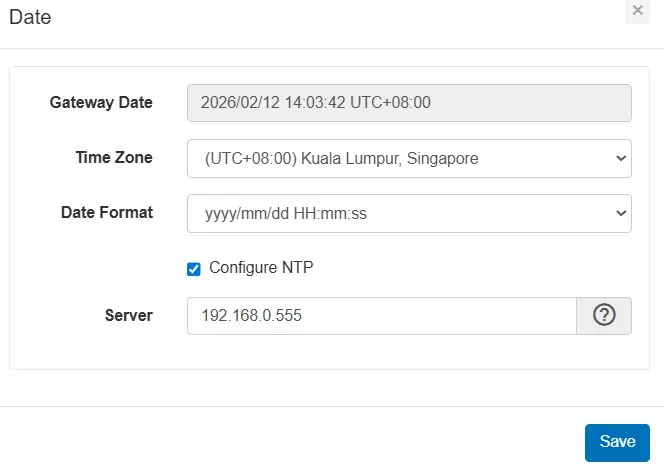
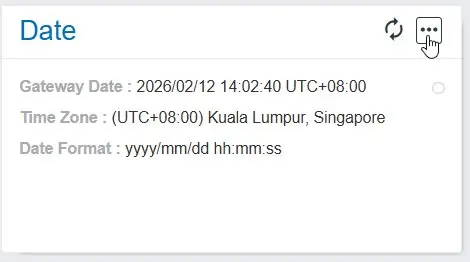
1. DATE: Click on the three dots in the “Date” panel of your gateway. Then, select your time zone and select the date format of your preference. Click on the “Save” button to synchronize your gateway’s time with your computer’s time.
2. NTP: Your gateway can be configured to a server of your choice for Network Time Protocol by clicking the “Configure NTP” check box and entering the address of the server of your choice. Click on the “Save” button to synchronize your gateway’s time with your configured NTP server.
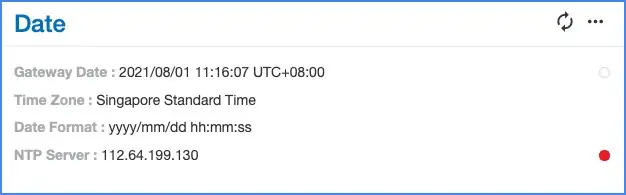
NoticeIf you see a red circle next to the NTP server information, that indicates a failure to connect to the specified server. Please check your NTP server address and confirm your gateway is connected to the internet (see Verify Internet Connection in Internet settings).